TradeFlow records every buy, sell, and plan shared in a WhatsApp group you’re already part of, and scores how each one did. You see what’s actually working.

The basics

If you're an active investor doing your own research and swapping buys, sells, and plans with fellow investors in WhatsApp groups, this is for you.

The problem

Buys, sells, and plans get buried in chat.

Buys, sells, and plans are posted in a WhatsApp group chat and scroll out of view. Weeks later it's hard to find who posted what, or whether it worked.

Who it's for

Members of trading groups on WhatsApp.

For WhatsApp groups whose members share their stock, options, and futures buys, sells, and plans in chat, and want a record of what was posted and how it turned out.

What it's for

A record of trades and outcomes.

It lists what the WhatsApp group traded, who posted, and how each buy, sell, and plan performed five trading days later.

What it's not

Limitations.

Not a group invite. This doesn't advertise a WhatsApp group or ask you to join one. It's a tool for getting more out of a group you're already in. It does the reading and sense-making you'd otherwise do by hand.

Not a live monitor. Data refreshes hourly. It's for review, not for reacting in real time.

Not a trading bot. Read-only. No broker connection, and it places no trades.

Not financial advice. It reports what happened. It doesn't recommend what to do.

What it shows.

01

The trade tape.

One chronological tape of the group’s trades, without the questions and chatter around them. Filter by symbol, instrument, action, outcome, or trader.

02

Crowd leaning.

Whether the WhatsApp group is opening or closing, put/call balance, the busiest symbols, and names several members are piling into.

03

Outcome check.

Every call gets a five-trading-day direction check: favorable, unfavorable, or flat. Stated targets are tracked separately. Options are scored on the stock's direction, not the contract's profit.

04

Trader comparison.

The Traders view compares activity, active days, favorite symbols, and scored outcomes. Nobody's identity is exposed, and small samples stay labeled.

Outcome scoring

Every call, checked against the market.

Each action is scored against daily market data from TradingView or Yahoo Finance, your pick. The scores show up on per-trader scorecards and in crowd insights.

Market data

  • Five-trading-day window after the call, on daily bars
  • Moves inside a 1% band count as flat. The rest are favorable or unfavorable
  • Stated targets are watched for 14 days
  • Options are scored on the underlying’s direction, not on fictional premium P&L

Trader scorecards

  • Per-member cards: activity, favorite symbols, instrument mix
  • Scored ✓ / ✗ / – record, plus target hits
  • Anonymized. Everyone is Trader 01, Trader 02, and so on
  • Small samples stay labeled. A 2-for-2 streak won’t be mistaken for a track record

Crowd insights

  • Deterministic rules, no black boxes. Activity spikes and drops, new-trader crowds,
  • put/call sentiment shifts, open/close lean flips, options-share surges
  • Hot traders flagged at 5+ scored calls with a 60%+ hit rate
  • Top signals surface first. When it’s calm, it says so
Live

This is the actual dashboard I use. It reads the WhatsApp trading group I’m in, scores each call every hour, and publishes the anonymized results here. TradeFlow works with whatever WhatsApp group you’re already in. Run it on yours and you’d get the same trade tape, outcome badges, crowd insights, and per-trader cards.

Live data — refreshes hourly.

21active traders tracked
242trade actions parsed
217outcomes scored
Open the live dashboard

A simple web page reading live data, refreshed hourly. No sign-up, no keys. Your own deployment reads from your database.
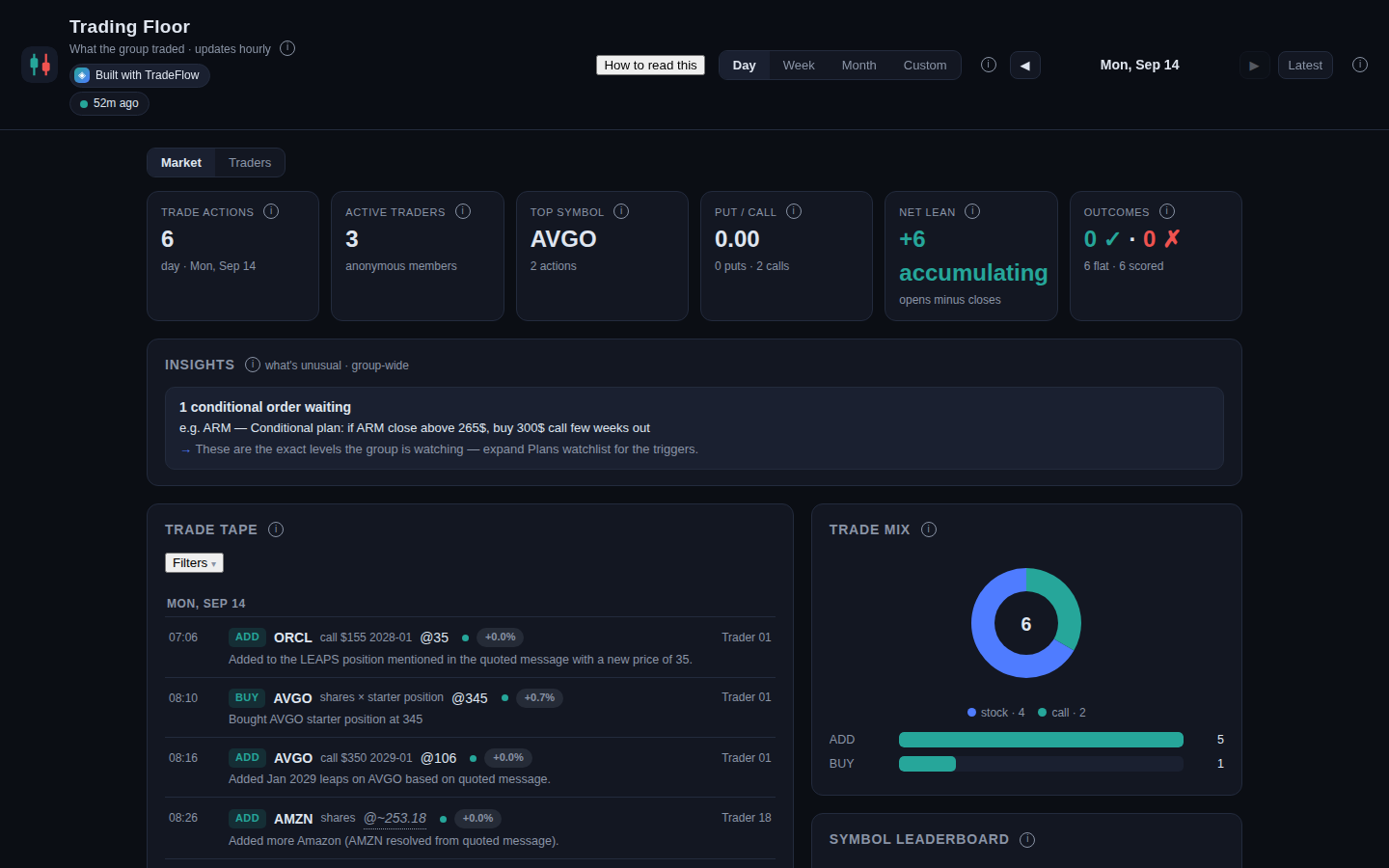
Trading Floor dashboard showing the trade tape, outcome badges, and trader stats
The dashboard, fully anonymized.

Want this for your group? Point it at your own WhatsApp group. The Get started tab has the checklist and the setup prompt.

Get started →
Privacy by design

It runs on your machine.

Raw chat and WhatsApp identities don’t reach the dashboard. An AI reads each message and pulls out the trade. Only anonymous trade records get stored.

  • Names and phone numbers become anonymous labels (Trader 01, Trader 02…)
  • Only anonymous records are published
  • Secrets and the WhatsApp session stay on your machine
  • Hourly pull-and-disconnect. No permanent session
  • The code is public. You can check what goes where
  • Runs on a free Oracle cloud server
  • Read-only. It places no trades
  • Calls scored against market data

What happens every hour.

The code includes the reader, parser, outcome scorer, setup UI, database, and dashboard. It runs on your own hardware. A free Oracle cloud server is enough.

Fair warning: this is the do-it-yourself path. It assumes you’re comfortable typing commands and running a small computer in the cloud. A hosted version for everyone else is on the roadmap.

01

Pull

Connect as a linked device, get new messages since the last check, disconnect. Hourly 8:30am–5pm ET, plus a midnight run.

02

Parse

Turn buys, sells, plans, options, and quoted replies into organized trade records.

03

Score

Check five-trading-day direction against market data.

04

Explore

Review flow, outcomes, clusters, and trader activity on the dashboard.

The stack

Every layer is swappable.

Chat reader

whatsapp-web.js

Connects as a linked device, pulls messages since the last check, and disconnects. No permanent session. No spare phone.

AI

Gemini API · free tier

Reads chat messages and pulls out the trade details: symbol, action, instrument, strike, expiry, quoted context. Any OpenAI-compatible AI works.

Market data

TradingView

Daily prices for the five-day outcome scoring, round-trip detection, and target checks. Yahoo Finance (free, no key) works as a replacement.

Database

Supabase · free tier

Stores the anonymous trade records. The dashboard reads them live; only the hourly job can write. Any compatible database works.

Runtime

Node.js + Python

Node.js runs the WhatsApp reader and setup UI; Python handles reading the trades, scoring them, and saving to the database. It all runs on your server: one script per cycle, on an hourly schedule.

Hosting

Vercel + Oracle Cloud · free

The dashboard is a simple page on Vercel; the hourly job runs on a free Oracle cloud server. Any Ubuntu server works as the host.
The above is the free-tier default, not a requirement.
System overview

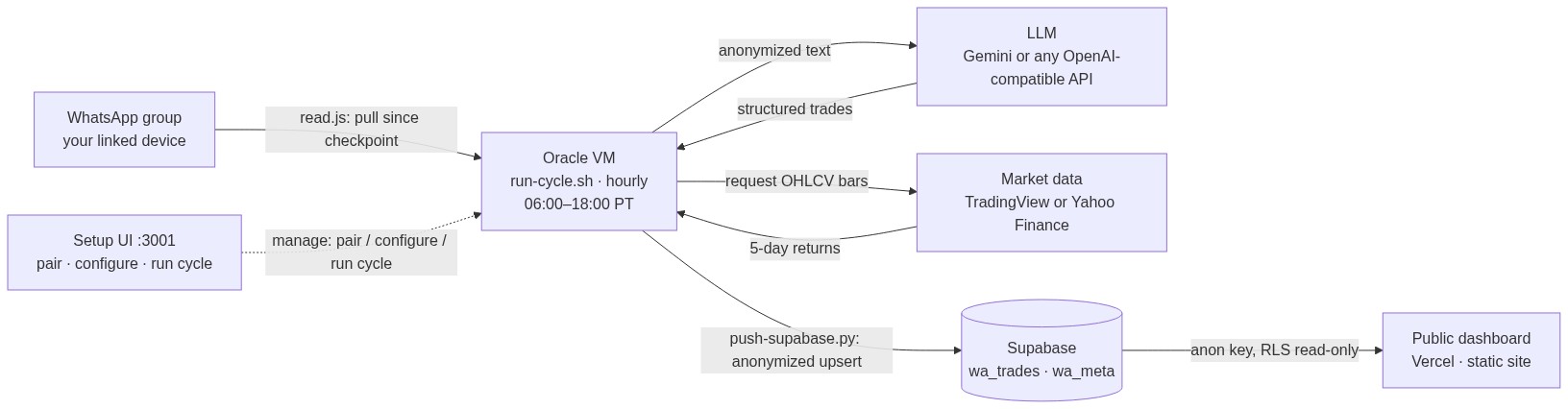
How the pieces connect.

System overview: the WhatsApp group feeds the hourly job on the Oracle server, which talks to the AI and market data, saves anonymous records to Supabase, and serves the public dashboard; the setup UI manages the server.

What you need, and the prompt that sets it up.

Gather the checklist, then hand the setup prompt to your AI agent. Every step matches the installer and setup UI.

Heads up: the steps below need some technical comfort. Typing commands, creating accounts on a few online services, and running a small computer in the cloud. If that’s not you, a hosted option is planned: you connect your WhatsApp group, fill in a short setup form, and get your own private dashboard, protected by a password. It’s paid, just enough to cover the running costs.

  • ✓
    Oracle Cloud accountAlways Free tier (any Ubuntu server works). Ubuntu 24.04, Ampere A1, 4 OCPUs / 24 GB RAM, with port 3001 open to the internet.
  • ✓
    WhatsApp on your phoneThe bot pairs as a linked device with a one-time code. No spare SIM, no number changes.
  • ✓
    Gemini API keyFree tier from Google AI Studio, or any OpenAI-compatible AI (base URL + key + model) via the setup UI.
  • ✓
    Supabase projectFree tier, or any compatible database. You need the project URL and service_role key; the setup UI shows the tables to create.
  • ✓
    TradingView accountOPTIONALYahoo Finance (free, no key) needs no setup, and the hourly job runs without either. Outcome scoring is simply skipped.
  • ✓
    Vercel accountFree tier. Where the dashboard lives. Import the code with root directory dashboard/ and it deploys on every push. Point dashboard/supabase-config.js at your Supabase project first.

The setup prompt

Set up TradeFlow end to end: https://github.com/vibhortayal/wa-trade-bot WHAT IT IS: an hourly job on a server. A WhatsApp linked-device reader pulls new messages from one WhatsApp trading group, an AI (Gemini by default, any OpenAI-compatible API works) extracts structured trade actions, market data (TradingView by default, Yahoo Finance works too) scores each outcome over five trading days, and anonymous records land in the database (Supabase by default, any PostgREST endpoint works) for a static dashboard. PREREQUISITES — I have all of these ready: - Oracle Cloud Always Free account (any Ubuntu server works; Oracle is the free suggestion) - Ubuntu 24.04 ARM server (Ampere A1: 4 OCPUs / 24 GB RAM) with a public IP; subnet security list allows TCP ingress on port 3001 from 0.0.0.0/0 - My WhatsApp account on my phone (I can type in a pairing code) - Gemini API key (free tier; or any OpenAI-compatible AI base URL + key + model) - Supabase project URL + service_role key (or any PostgREST endpoint) - TradingView account (optional — for outcome scoring; or use free Yahoo Finance instead) - Vercel account (free tier — hosts the dashboard) DO THIS IN ORDER. Verify each step before moving on. 1. DEPLOY THE CODE Copy the repo to the server. The server directory is NOT a git repo — always deploy with scp, never git pull there: scp -r . ubuntu@<VM-IP>:~/wa-trade-bot SSH in and install (Node 20, Python 3, Chromium, systemd units). It asks for a setup-UI admin password — have me choose one: ssh ubuntu@<VM-IP> bash ~/wa-trade-bot/deploy/install.sh 2. OPEN THE SETUP UI http://<VM-IP>:3001/setup.html — HTTP Basic Auth, any username + the admin password from step 1. (Plain HTTP: fine for setup over a trusted network; don't expose it more broadly than needed.) 3. LINK WHATSAPP In the UI, enter my phone number in international format (e.g. 15551234567) and get the pairing code — hand it to me immediately, codes expire. I type it into WhatsApp → Settings → Linked devices → "Link with phone number instead". Confirm the UI reports wa_paired: true before continuing. 4. SAVE THE KEYS In the UI, paste the Gemini API key, the Supabase URL, and the Supabase service_role key. Then run the SQL shown in the UI's schema box once in the Supabase SQL editor — it creates the wa_trades and wa_meta tables with anon read-only access. Leave GEMINI_MODEL unset; the default model is used. 5. SET THE WHATSAPP GROUP In the setup UI, enter the trading group's name in the "WhatsApp group to watch" field and save (it also shows the current value, and you can change or reset it any time). Alternatively, set WA_GROUP_QUERY in ~/wa-trade-bot/.env over SSH. (Substring match on the WhatsApp group name; the reader only touches group chats and stays within this one group.) 6. CONNECT TRADINGVIEW (outcome scoring) In the UI: pick the market-data source first. For TradingView, start the auth, open the authorize URL, approve it, then paste the full callback URL (the one containing ?code=...) back into the UI -- tokens stay on the VM. For Yahoo Finance there is nothing to connect. Skip this if I don't need outcome scoring. 7. RUN THE FIRST CYCLE In the UI press "Run a cycle now" — or over SSH: MANUAL_RUN=1 bash ~/wa-trade-bot/run-cycle.sh It pulls recent messages, parses trades, scores outcomes, and pushes to Supabase. Verify the cycle exits 0 and new rows appear in the wa_trades table. 8. CONFIRM THE SCHEDULE sudo systemctl status wa-trade-bot-cycle.timer — the hourly job runs 08:30–17:00 America/New_York plus a midnight ET run. 9. DEPLOY THE DASHBOARD Vercel is the dashboard's canonical home — the bot only runs the hourly job and the setup UI. Edit dashboard/supabase-config.js with your Supabase project URL and anon key, commit, and push. In Vercel, import the repo with the root directory set to dashboard/ — it redeploys automatically on every push. Open the Vercel URL; it reads live from Supabase. HARD RULES - Never print, log, or commit: .env contents, data/messages.jsonl (raw chat), data/pseudonyms.json, phone numbers, sender names, WhatsApp group IDs, API keys, the admin password, or pairing codes. They are gitignored — keep them that way. - No git pull on the VM. Ever. Deploy with scp. - PUPPETEER_EXECUTABLE_PATH must be /snap/chromium/current/usr/lib/chromium-browser/chrome (the real binary). /snap/bin/chromium does NOT work inside systemd services. - Keep whatsapp-web.js's default Chrome/101 user agent; newer user agents land on WhatsApp's unsupported-browser page. - If anything fails, show me the exact error plus the log tail (the UI "Status" section, or logs/cycle.log on the VM) before retrying.

After the prompt runs: the setup UI.

The agent does the deploying and installing. Three steps need you: typing the pairing code into WhatsApp on your phone, pasting your API keys, and creating the Supabase tables once. It all happens in the setup UI, section by section:

  • S
    Status — the at-a-glance checkYes/no pills for WhatsApp linked, AI keys, Supabase, and market data, plus counts of messages pulled and trade actions parsed, with last pull and parse times. When something looks wrong, start here.
  • 1
    Link WhatsApp — the one step that needs your phoneEnter your number, take the code, type it into WhatsApp → Settings → Linked devices → "Link with phone number instead". Done when Status reads WhatsApp linked: yes. If a code expires or the link stalls, "Get a fresh code" wipes the half-finished session and starts over.
  • 2
    API keys & WhatsApp groupPaste the Gemini key (or any OpenAI-compatible base URL + key + model), the Supabase URL + service_role key, and the WhatsApp trading group's name. Each field shows whether it's set — change or reset any of them later.
  • 2b
    Database tables — one-timeCopy the SQL from the box into the Supabase SQL editor and run it. Creates the tables with read-only public access.
  • 3
    Market data for outcome scoringConnect TradingView with one click, or switch to Yahoo Finance (nothing to connect). Skip it and outcome scoring is simply skipped.
  • 4
    Run a cycle — the log tail lives here"Run a cycle now" pulls recent messages, parses trades, scores outcomes, and pushes to Supabase. The log below the button shows it happening, with Refresh and Copy buttons beside it.

How to know it worked:

  • ✓
    Status shows all yesWhatsApp linked, AI keys, Supabase, market data.
  • ✓
    A cycle exits 0"Run a cycle now" finishes; the log tail says so.
  • ✓
    Rows land in SupabaseNew records appear in the wa_trades table.
  • ✓
    The dashboard shows your tapeOpen the Vercel URL — it reads live from Supabase.
  • ✓
    The timer is setsudo systemctl status wa-trade-bot-cycle.timer — hourly, 08:30–17:00 ET plus a midnight run.

Questions people actually ask

Does it read my personal chats?

No. It watches exactly one WhatsApp group chat — the trading group you name in the setup UI — and only messages from that group. Your 1:1 chats are never touched.

Do I need a spare phone or SIM?

No. The reader pairs as a linked device on your existing WhatsApp account with a one-time code, then disconnects after every hourly pull.

Does it place trades?

Never. It's read-only analytics — it watches, structures, and scores. There is no brokerage connection and no order path anywhere in the code.

What does it cost to run?

$0 a month on free tiers: an Oracle Cloud Always Free server, the Gemini free tier, Supabase free tier, and Vercel free tier. Every layer is swappable if you'd rather use your own providers.

Things that broke for us.

Pairing never completes

Pairing is a round trip: the setup UI shows a code, you type it into WhatsApp on your phone, and WhatsApp confirms back to the server. The link only counts once the UI reports wa_paired: true. Type the code in right away — codes expire within minutes — and wait for that confirmation before moving on. If it keeps failing, the server is holding a stale half-paired session: click "Get a fresh code" in the setup UI, which wipes it and starts clean.

Can't reach the setup UI on port 3001

The page at http://<VM-IP>:3001/setup.html won't load. Oracle blocks all ports by default — the subnet's security list needs a TCP ingress rule for port 3001 (source 0.0.0.0/0). Add it in the Oracle console under Networking → Security Lists; the checklist above has the exact rule.

Oracle says "out of capacity" when creating the server

Always Free capacity in a region comes and goes — we hit this in us-sanjose-1 for both free shapes. Retry, or try the other shape. What unblocked us: upgrading the tenancy to Pay As You Go (card on file, still free-tier eligible) with a budget alert as a safety net.

The reader pulls no messages

Two usual causes. First, a fresh linked device takes up to a minute to sync its chat list — the reader polls and waits, so give it a moment and run the cycle again. Second, the group filter: the reader only looks at the group named in "WhatsApp group to watch" in the setup UI (case-insensitive substring match). If that doesn't match the group's actual name in WhatsApp, it finds nothing.

The reader fails: Chromium won't start

Symptom: pairing codes never appear, or reads die instantly. The chromium snap's launcher wrapper refuses to run inside a systemd service — the browser starts fine over SSH but never from the timer or setup UI. The fix is PUPPETEER_EXECUTABLE_PATH=/snap/chromium/current/usr/lib/chromium-browser/chrome (the real binary). The installer sets this already; only hand-rolled setups need it done manually.

Parse errors or quota failures

One bad batch never blocks the rest: the parser retries failed batches smaller, and messages it can't parse are marked and skipped. The usual cause is the Gemini free tier's rate limit. Easiest fixes first: add a backup Gemini key in the setup UI (it fails over automatically when the primary hits quota), wait for the quota to reset, or point the setup UI at any OpenAI-compatible model instead.

Cycle skipped: "outside 08:30–17:00 ET + midnight ET window"

Not an error — the timer only runs 08:30–17:00 America/New_York plus a midnight run by design. For an immediate run, "Run a cycle now" in the setup UI bypasses the time gate.

Dashboard looks stale

Check Status first. If "Last pull" is old, the hourly job isn't running — check the timer and the cycle log. If the tape is fresh but outcome badges are missing, that's the market-data source: scoring failures never block new trades, so an expired TradingView token or an unreachable Yahoo just leaves scores blank. Reconnect it in §3 of the setup UI.

One prompt sets it all up.

One free VM, your existing WhatsApp, one API key. Hand the setup prompt to your AI agent.

Open the live dashboard ↗

Get signal, not noise.

The pipeline handles messy chat. A few WhatsApp group habits make the tape cleaner and the scores more meaningful.

  • 1
    Point it at a signal-dense WhatsApp groupThe reader watches one WhatsApp group. Make it one where people post actual trades, not memes and market chatter. Less noise means a cleaner tape, faster cycles, and fewer wasted AI calls.
  • 2
    Agree on a post formatACTION SYMBOL details — e.g. ADD AMZN $300 call or EXIT TSLA shares. The parser handles free text, but consistent posts extract reliably. Pin the format to the WhatsApp group.
  • 3
    Quote the trade you're following up onWhen you trim or exit, quote the original message. Quoted replies get linked automatically, so follow-ups attach to the right entry. Exits then score on the actual return.
  • 4
    Post targets with plansPLAN AMZN target 300. The dashboard checks whether stated targets get hit. A plan without a target can’t be scored.
  • 5
    Share the dashboard back with the WhatsApp groupA visible scoreboard improves post quality on its own. Keep the anonymous labels intact — never de-anonymize anyone publicly.
  • 6
    Judge on samples, not single callsThe Traders tab flags small samples for a reason. Give a member 10+ scored trades before weighting their calls. Remember: ✓/✗ is five-day underlying direction, not premium P&L.
  • 7
    Review weekly, not hourlyOutcomes need five trading days to mature. The tape is for today; the Traders tab is for the quarter.

Planned, not built.

Where TradeFlow goes next. None of this exists yet. It's the direction, not a feature list.

Planned

Managed service.

A hosted option, paid just to cover costs. You connect your WhatsApp group and fill in a short setup form. Your group’s data stays private to you, and you get your own dashboard protected by a password.

Planned

More channels.

Telegram, Discord, and others. Today it reads WhatsApp only.

Planned

Multiple groups.

Follow several groups in one dashboard, on the same channel or across channels.

Building with it? Found a rough edge?

A side project — feedback, feature requests, and bug reports welcome.